Authorization
The authorization procedure is designed to identify the user and provide access to the Boss Personal Account's functionality in accordance with established rights.
MixVel Boss personal account at the demo stand: lk.demo.mixvel.io.
MixVel Boss personal account at the prod stand: lk.mixvel.io.
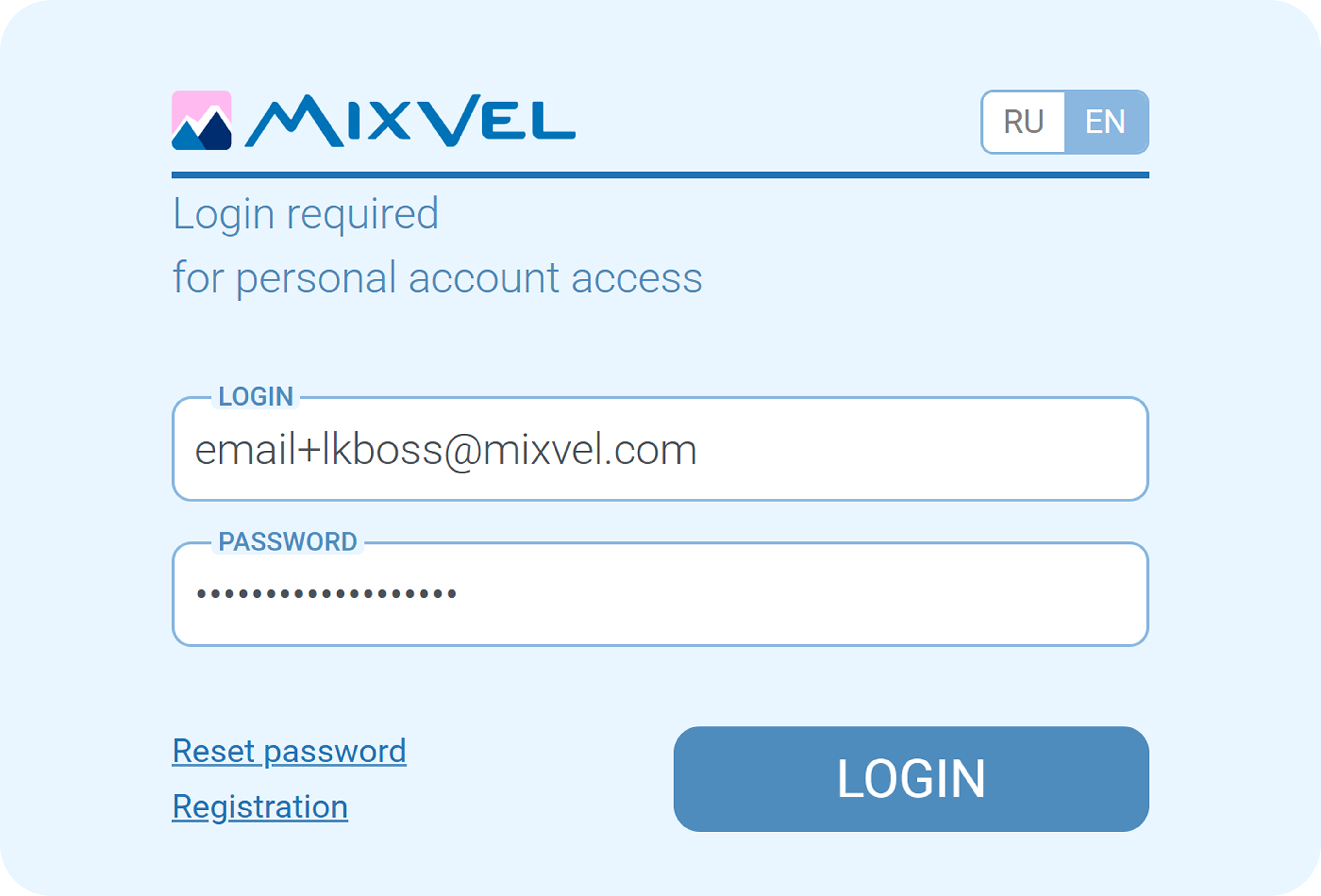
«Authorization» page
The login page allows to select the interface language (Russian (RU) / English (EN)). The selected language is saved for the current session and applies to all login pages.

Authorization language selection button
To log in to Boss personal account, follow these steps:
1. Open the specified URL in a supported web browser.
2. Enter your username and password (your email address and password).
3. Click «Login».
4. If two-factor authentication is enabled:
-
enter the confirmation code;
-
click «Confirm».
When first logging in, users must read the agreement and check the box confirming their consent to the processing of their personal data. This consent is required only once, after registration or after updates.
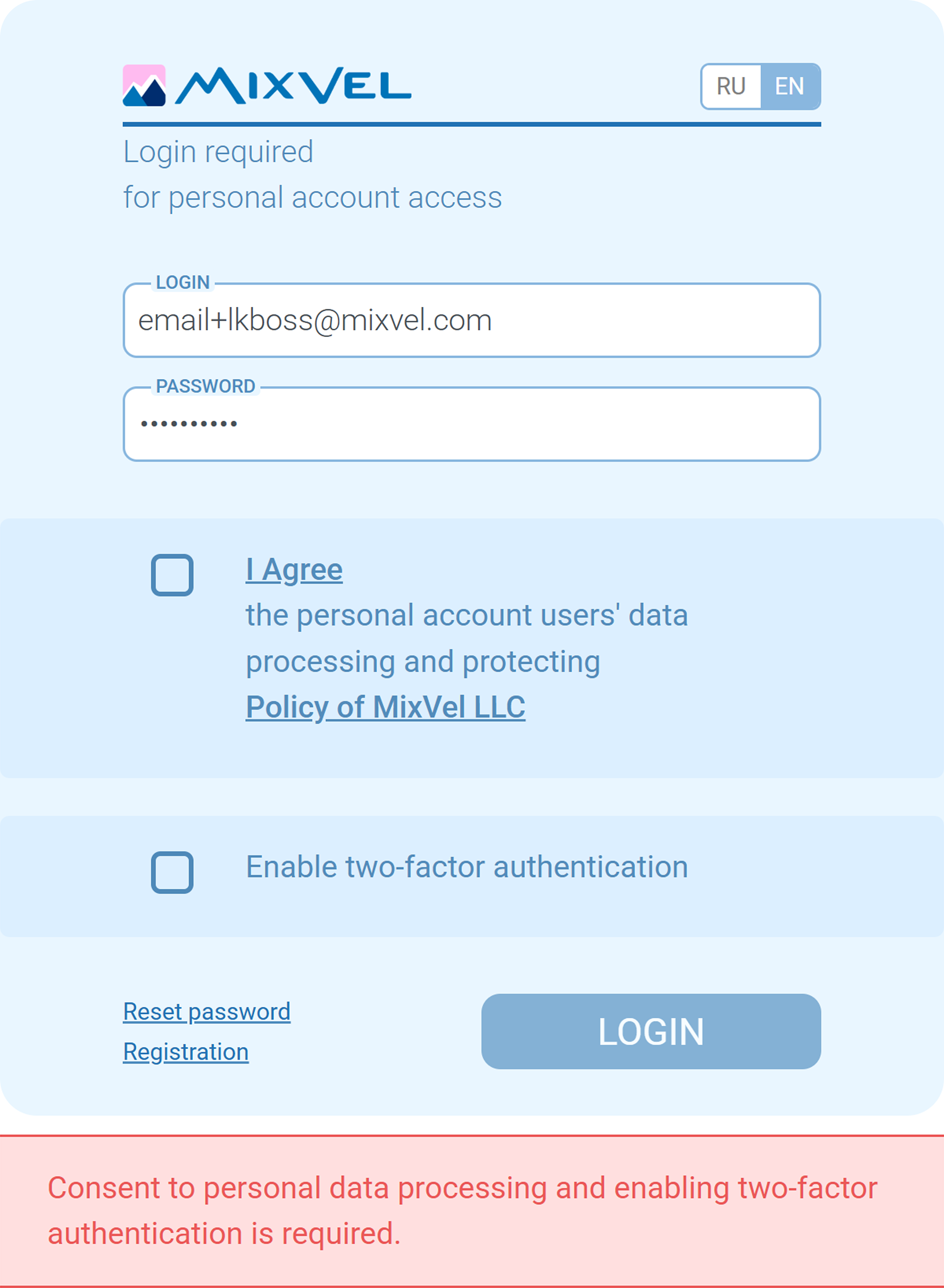
Authorization window with consent to the processing of personal data and the activation of two-factor authentication
When logging in for the first time, the user must complete the initial setup of two-factor authentication (see the section Initial setup of two-factor authentication).
Notes:
-
After 3 (three) unsuccessful attempts to enter the two-factor authentication code, the account will be locked.
-
To unlock, please contact technical support at support@mixvel.com.
-
The counter of unsuccessful attempts is reset when the code is successfully entered.
-
If the user has not received their credentials or has forgotten their password, please contact the system administrator.
-
To ensure the authorization window displays correctly, it is recommended to clear the browser cache.
-
Policy of Processing and Protection of Personal Data of Users of the Personal Account
-
Consent to the processing of personal data of users of personal account
Initial setup of two-factor authentication
As an additional security measure, the MixVel Boss provides a two-factor authentication mechanism.
After entering your login and password, the system will prompt you to enable and configure two-factor authentication.
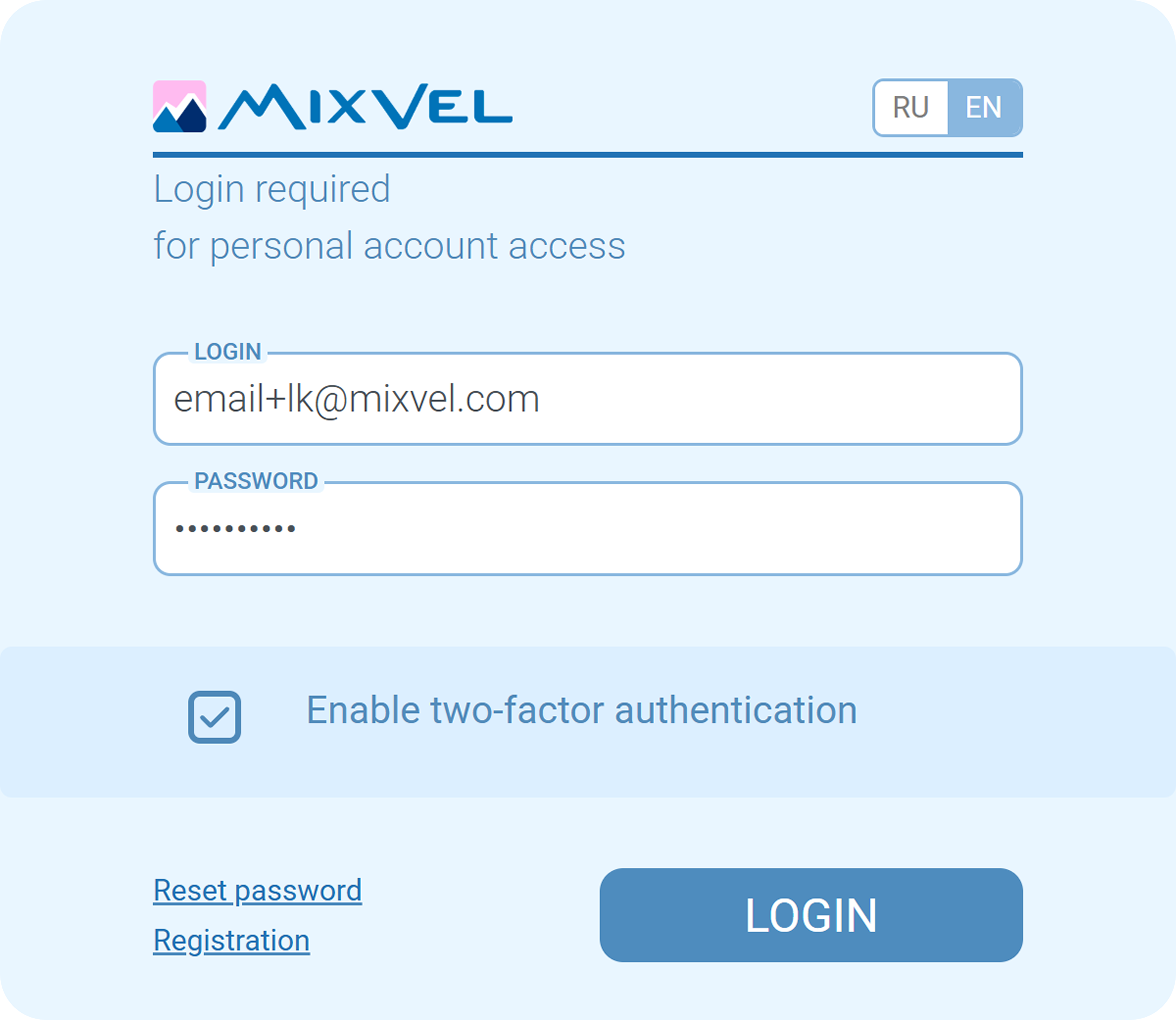
Two-factor authentication activation page
To successfully set up two-factor authentication for the first time, follow these steps:
1. On the login page, enter login and password.
2. Click the «Login» button.
3. In the checkbox that appears, select the «Enable two-factor authentication» option.
4. Click the «Login» button.
5. In the window that opens, click the «OK» button.
6. Open the instruction email sent to the email address that is used as the login for personal account.
7. Follow the steps in the instruction to set up two-factor authentication.
8. Enter the verification code from the mobile app and click the «Confirm» button.
Notes:
-
Using two-factor authentication is mandatory for the version of MixVel Boss 2.3.0 and newer.
-
If the email does not appear within a few minutes, check the spam folder.
-
The validity period of the confirmation code is 30 seconds. After 30 seconds, a new confirmation code will be generated.
Re-configuring two-factor authentication
Re-configuration of two-factor authentication may be necessary if access to the previously used device has been lost or made impossible for any reason, as well as if the account password has been changed.
In order to restore access to the user account of the MixVel Boss and re-configure two-factor authentication, contact the technical support service at support@mixvel.com.
Note:
If you restore the password yourself, you can also reissue the QR code for two-factor authentication. (See the section Password reset)
Password reset
For security purposes, the system automatically blocks the account after three failed password attempts. To unlock it, contact technical support at support@mixvel.com or recover your password yourself.
To reset your password on your own, follow these steps:
1. On the login and password entry page, click the «Reset Password» button.
2. In the window that opens, enter the email address you used to register your account with the agency.
3. Click the «Reset» button.
4. Open the email with the password reset instructions in the email account you use to log in to your account.
5. Follow the steps in the instructions to reset your account password.
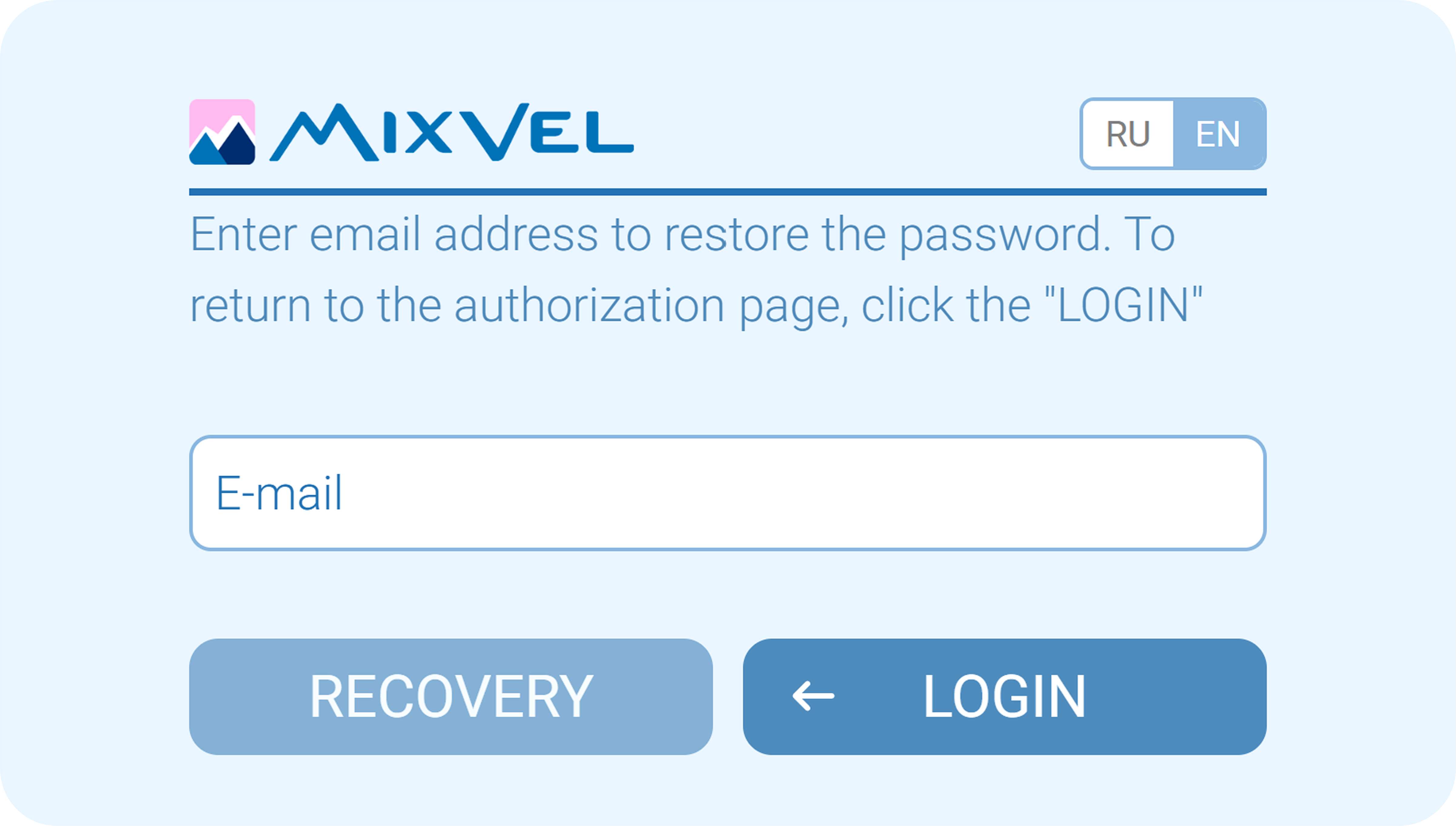
The «Password Reset» page
Notes:
-
If the email does not appear within a few minutes, check your spam folder or try again by ensuring that the address is correct.
-
If you choose to reset your password on your own, you can reissue the QR code for two-factor authentication.
-
If the user remains inactive for 60 minutes, the account will be automatically logged out. To continue working, you will need to re-authorize your account.