Special Service Requests
The «Remark» section is accessible from the order management panel. This section is intended for adding and managing special passenger requests and service information transmitted to the airline.
The MixVel Cashier Web Application supports the following types of remarks:
-
SSR (Special Service Request) — special passenger requests;
-
OSI (Other Service Information) — informational messages for the airline.
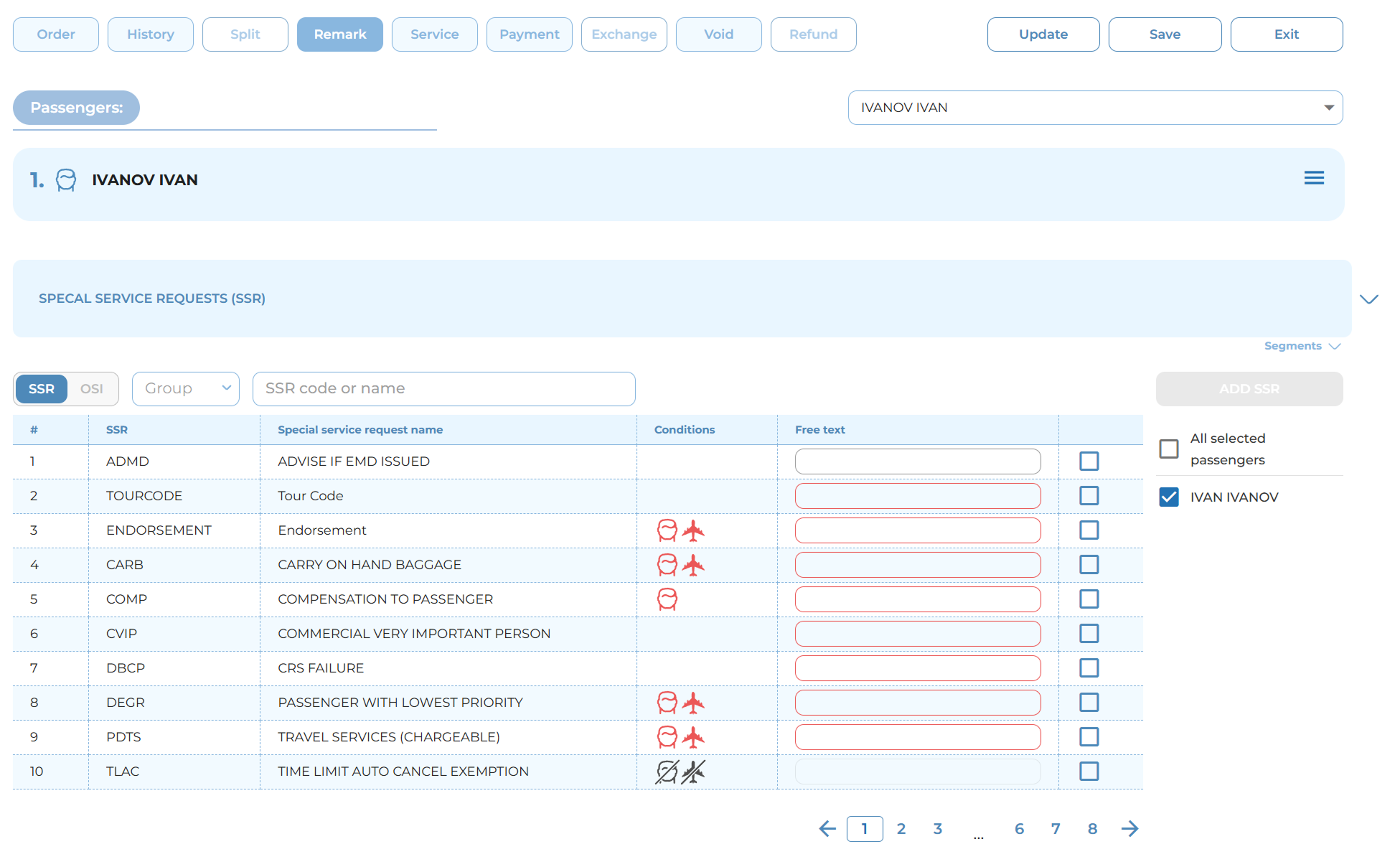
View of Remarks section. SSR remark type selected

View of Remarks section. OSI
Remarks may be linked (associated) with various elements of the order. The association type defines to whom or to what the remark applies:
-
Unassociated — apply to the order as a whole.
-
Associated with a passenger — apply to a specific passenger (e.g., individual requests).
-
Associated with a segment — apply to a specific flight (e.g., meal request on a specific aircraft).
-
Associated with a segment and a passenger — apply to a specific passenger on a specific flight.
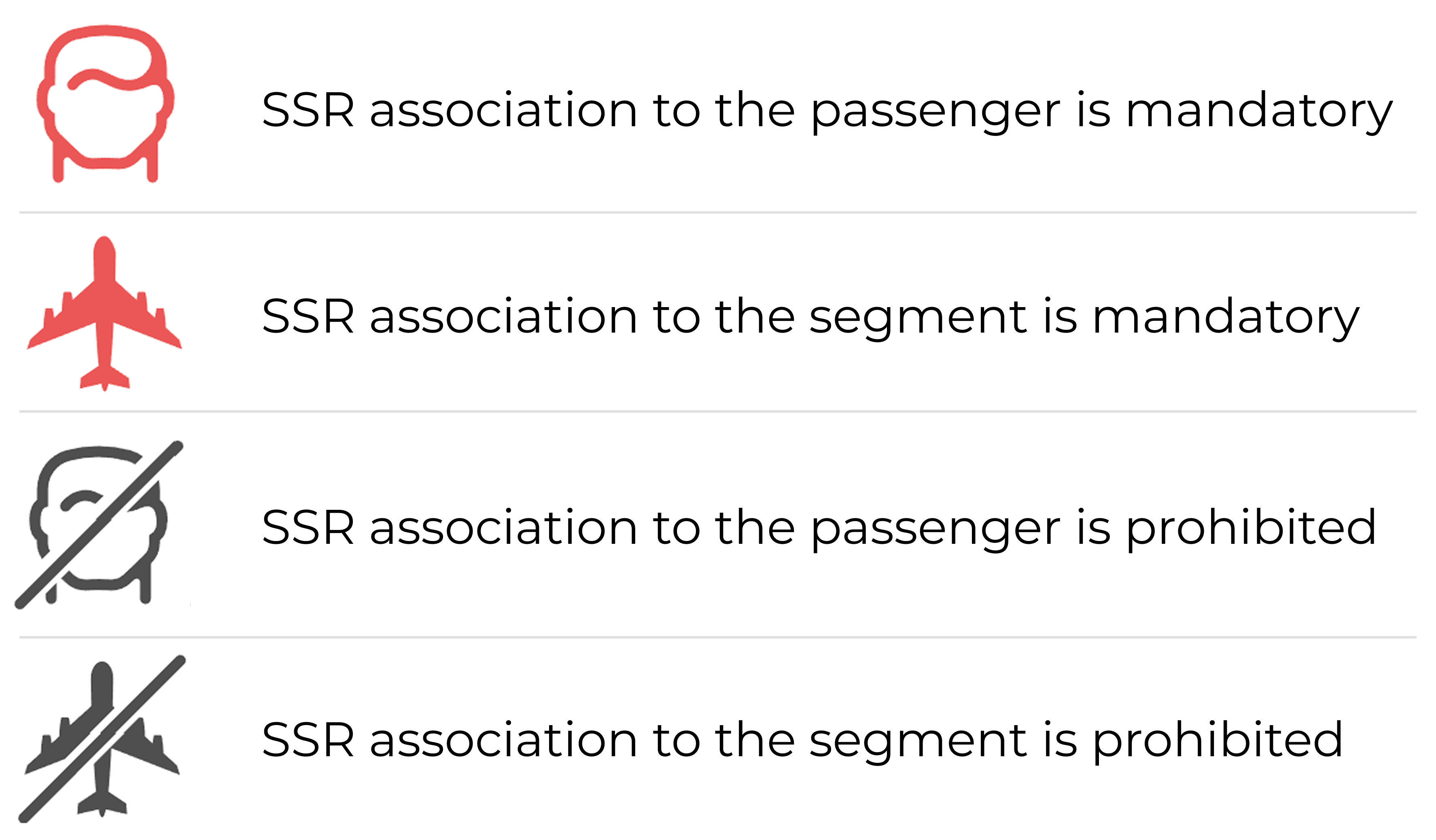
For convenience, the rules for associating remarks with a passenger or segment are presented in the Mixvel Cashier Web-application as follows:
The interface of the «Remark» section includes the following main elements:
1. Passenger Selection:
Allows selecting one or more passengers for adding remarks. By default, the first passenger in the order is selected. For each selected passenger, a separate information block is displayed containing their data and associated services and remarks.
2. Itinerary Segment Selection:
The itinerary line is displayed below the passenger blocks. To display all segments, click the «Segments» button and select one or more segments to which the remark will apply.
3. Search and Selection of Remarks:
The following elements are used to search for remarks:
-
SSR / OSI remark type toggle;
-
«Group» drop-down list;
-
«Name» field for searching by code or description (e.g., WCHR, VGML).
The results are displayed in a table containing:
-
SSR — remark code;
-
Name — description;
-
Conditions — association type;
-
Text — field for entering additional information (mandatory fields are highlighted);
-
Select — checkbox for adding the remark.
Notes:
-
The conditions of application (association type) for each remark are displayed in the «Conditions» column of the remarks table.
-
Data for a passenger without a seat (INF) is displayed within the block of the adult passenger to whom they are linked (similar to other sections).
Adding remarks
To add remarks to the order, perform the following steps:
1. Select the passengers and segments to which the remark will be associated.
2. Set the SSR/OSI toggle to the required position.
3. If necessary, search for the remark by code or name, or use the list navigation.
4. In the results table, select the required remark.
5. If necessary, fill in the «Text» field (mandatory fields are highlighted).
6. Click the «Add» button to add the remark to the order cache.
7. Click the «Save» button to apply the changes to the order.
8. Refresh the order (using the «Update» button or by navigating to the «Order» section).
After the order has been successfully refreshed, the system will display the carrier's processing statuses for the special requests.
Notes:
-
Added remarks are displayed in the information blocks of the corresponding passengers.
-
Color coding is used for remark statuses (similar to service statuses).
-
Adding confidential OSI remarks is unavailable in the current version.
Display of Remarks in the Order
After remarks (SSR/OSI) have been added and saved, they are displayed in the «Order» section within the «Special Service» block.
The block displays all remarks for the order (by passenger, by segment, and for the entire order).
Note: Only viewing is available; editing and deletion are performed in the «Remark» section. The display is toggled using the «Details» button.
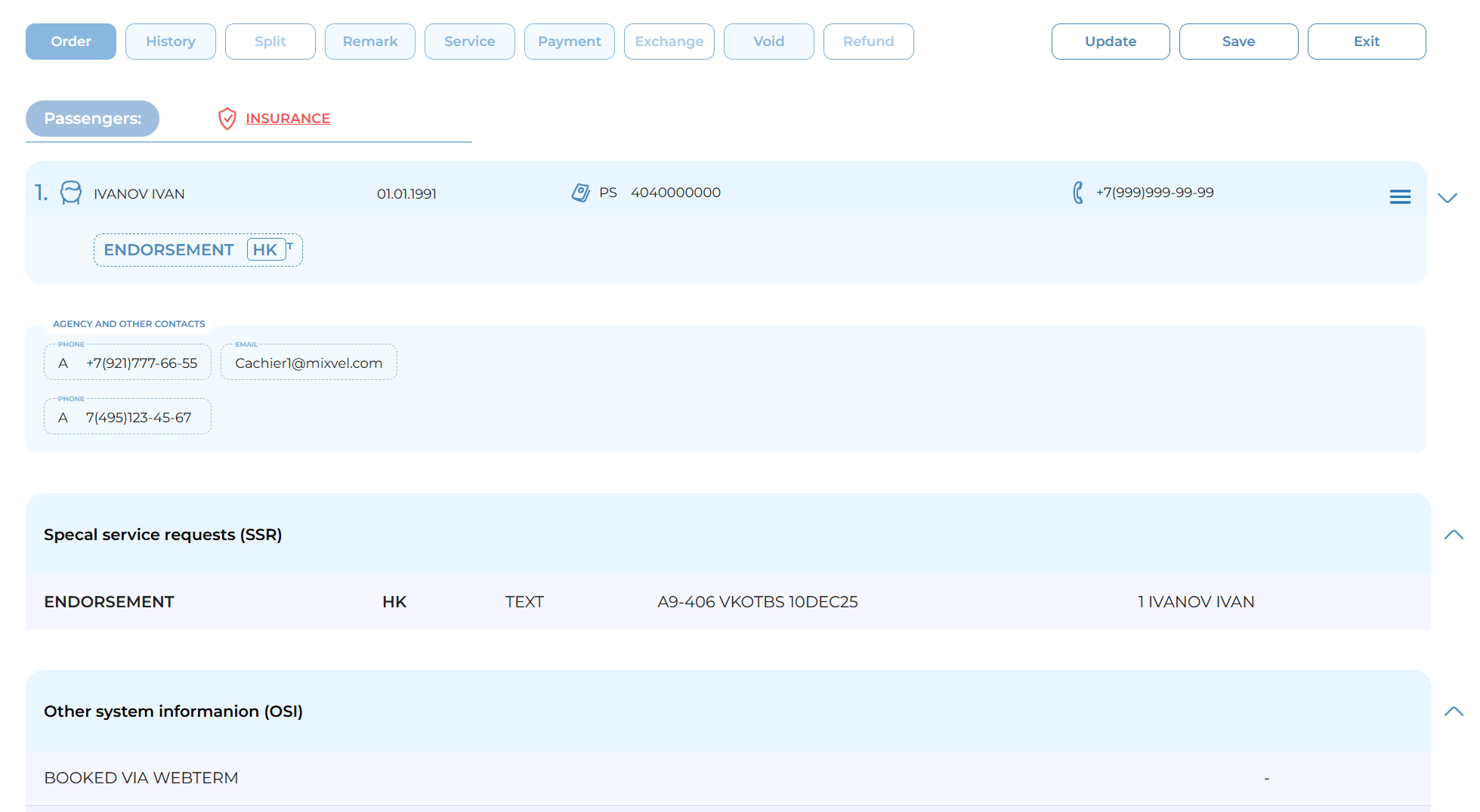
SSR block display in the «Order» section
SSR Deletion
Deletion of remarks (SSR and OSI) is performed in the «Remark» section and is available for remarks that have not been processed by the carrier or that may be cancelled. To delete a remark, perform the following steps:
1. Open the order and navigate to the «Remark» section.
2. In the passenger's information block, locate the required remark.
3. Click the cross icon next to the remark.
4. Click the «Save» button to apply the changes to the order.
After performing this action, the remark will be removed from the order.