Authorization
The authorization procedure is intended to identify the user and grant access to the functional capabilities of the web application in accordance with the established permissions.
For successful authorization, the user must be preliminarily registered in the Boss Personal Account system (Boss PA).
Note: To create an account, please contact the agency administrator.
The login page of the MixVel Cashier Web Application is available at the permanent URL: cashier.mixvel.io

Authorization page
The login page features interface language selection (Russian (RU) / English (EN)); the selected language is retained for the duration of the current session and is applied to all login pages.

Authorization language selection button
To log in to the MixVel Cashier Web Application, perform the following steps:
1. Open the specified URL in a supported web browser.
2. Enter your login and password (the user email and password received upon registration in the Boss Personal Account admin panel (Boss PA)).
3. Click the «Login» button.
4. If two-factor authentication is enabled:
4.1. enter the verification code;
4.2. click the «Confirm» button.
5. After successful login, in the window that opens, select:
5.1. the point of sale (structural unit) from the drop-down list (provided the corresponding permissions are configured in Boss PA);
5.2. the session (sales stock) for operation.
6. Click the «Select» button.
Wait for the main window of the Web Application to load; it will open in accordance with the selected session.
Notes:
-
After 3 (three) unsuccessful attempts to enter the two-factor authentication code, the user account is locked.
-
To unlock the account, please contact Technical Support at support@mixvel.com.
-
The failed attempt counter is reset upon successful code entry.
-
If the user has not received the credentials or has forgotten the password, they must restore the password.
-
To ensure the login page displays correctly, it is recommended to clear the browser cache.
First-time authorization
Upon initial login, as well as after upgrading the application to version 1.9.0 or later, the user must perform the following steps for successful authorization:
1. Read the Personal data processing and protection policy and A consent to the policy.
Note: The documents are listed below.
2. Agree with the Personal data processing and protection policy by clicking the checkbox on the login page.
3. Configure two-factor authentication:
3.1. Click the «Login» button.
Instructions for setting up two-factor authentication will be sent to the email address used as your login.
Note: If the email does not arrive within a few minutes, please check your Spam folder.
3.2. Click the «OK» button.
3.3. Follow the steps described in the instructions to configure two-factor authentication using the MixVel Key application.
3.4. Enter the authentication code from the MixVel Key application and click the «Confirm» button.

An authorization window with consent to the processing of personal data and the activation of two-factor authentication
Notes:
-
Using two-factor authentication is mandatory for application version 1.9.1 and newer.
-
The authentication code is valid for 30 seconds. After 30 seconds, a new authentication code will be generated.
Reconfiguring Two-Factor Authentication
Reconfiguring two-factor authentication may be necessary if access to your previously used device is lost or becomes impossible for any reason, as well as when changing your account password.
To regain access to your MixVel Cashier user account and reconfigure two-factor authentication please contact Technical Support at support@mixvel.com.
Note: When restoring your password independently, you also have the option to reissue a QR code for two-factor authentication. (See the section: Password Restoration below)
Password restoration
For security purposes, the system automatically locks the user account after three unsuccessful password entry attempts. To unlock the account, please contact Technical Support at support@mixvel.com or reset the password manually.
To reset the password manually, perform the following steps:
1. On the login and password entry page, click the «Reset Password» button.
2. In the window that opens, enter the email address that was specified during the registration of your account with the agency.
3. Click the «Recover» button.
4. Open the email containing the password reset instructions in the mailbox that is used as the login to access the application.
5. Follow the steps described in the instructions to reset your account password.

Password entry page
Notes:
-
If the email does not arrive within a few minutes, check the «Spam» folder or repeat the attempt, ensuring that the entered email address is correct.
-
When resetting the password manually, reissuance of the QR code for two-factor authentication is available.
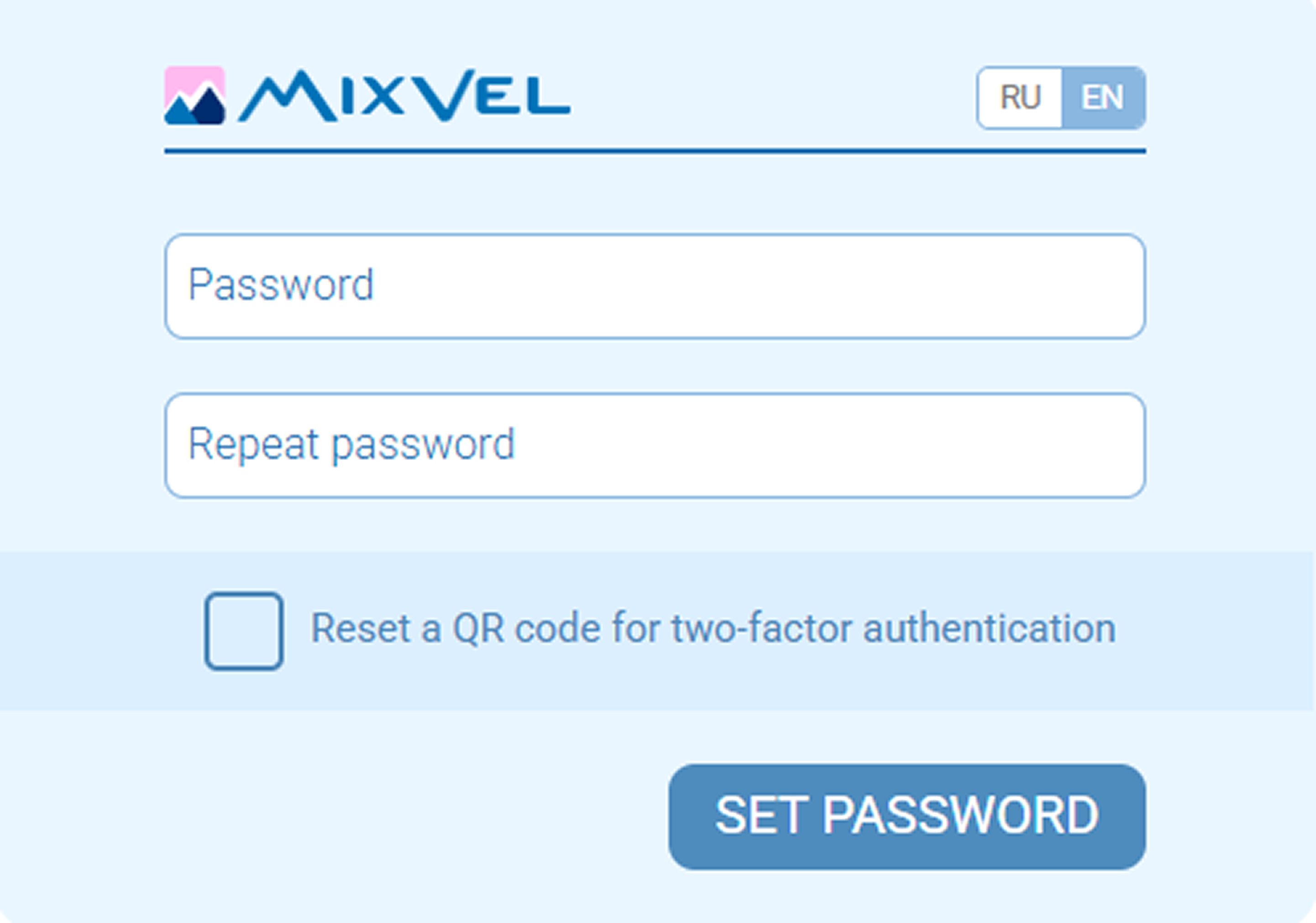
«Password Recovery» page
Authorization interruption
The system ensures the protection of confidential data and prevents unauthorized access in case the user has forgotten to end the work session or has left the workstation unattended.
If the user remains inactive for 60 minutes, automatic logout from the user account occurs.
To resume work, the authorization procedure must be completed anew.