Sales Report
The sales report is a list of the user's financial transactions for a specific period of time. Only the user's own financial transactions are included in the sales report.
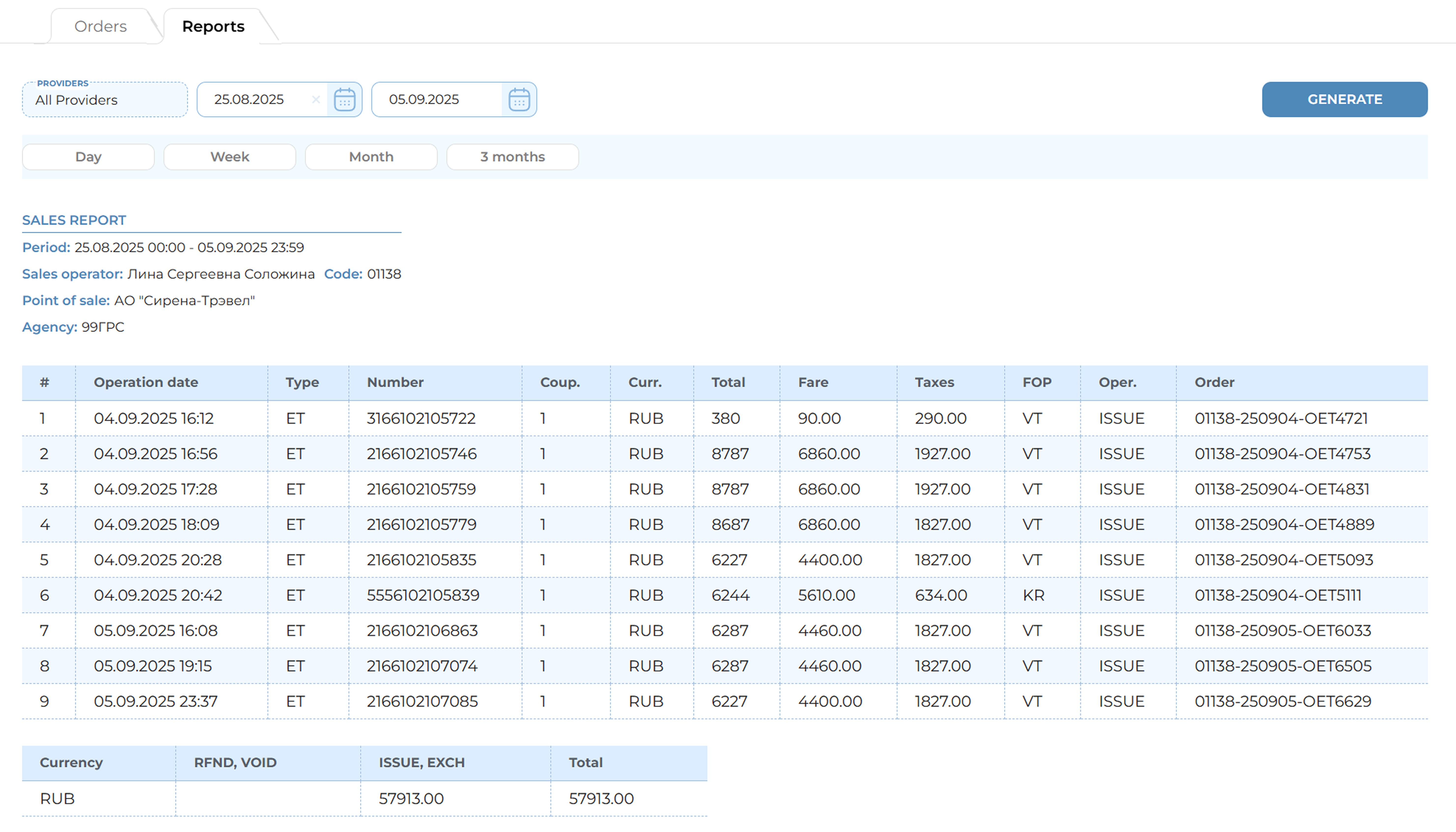
Sales report and general financial information
To generate and view the sales report, perform the following steps:
-
In the vertical menu of the MixVel Cashier Web-Application, select the «Orders/Reports» section.
-
Specify the report period: current day, week, month, three months, or a custom period (not exceeding three months). When selecting a custom period, you must specify the start date and end date of the period for which the report is generated.
-
Click the «Generate» button to generate the report.
After the report is generated, the following information for each financial transaction is displayed in the table:
-
Line number, assigned based on the time the transaction was performed;
-
Date and time of the transaction;
-
Type of issued form:
- ET — Ticket;
- EMD — Electronic Miscellaneous Document;
- OTH — Other documents, e.g., a direct supplier session insurance policy.
-
Form number or related form numbers;
-
Number of form coupons;
-
Payment currency;
-
Total cost of the form or related forms;
-
Fare as part of the form's financial information;
-
Taxes as part of the form's financial information;
-
Form of payment;
-
Operation:
- ISSUE — Sale;
- VOID — Sale Voiding;
- EXCH — Exchange;
- RFND — Refund.
-
Order number to which the form belongs.
Note: When an exchange operation is performed, the «Total» column displays the total amount after the exchange calculation. It reflects the financial result of the exchange — the difference between the cost of the new ticket and the cost of the previously paid ticket. If the cost of the new ticket is higher, the column indicates the additional payment amount; if lower, the amount to be refunded to the passenger.