Ancillary services
The "Service" section, accessible from the order control panel, allows adding and managing additional services associated with the air travel. Such services include: excess baggage carriage, seat selection in the cabin, onboard catering, insurance, and other paid services provided by the airline.
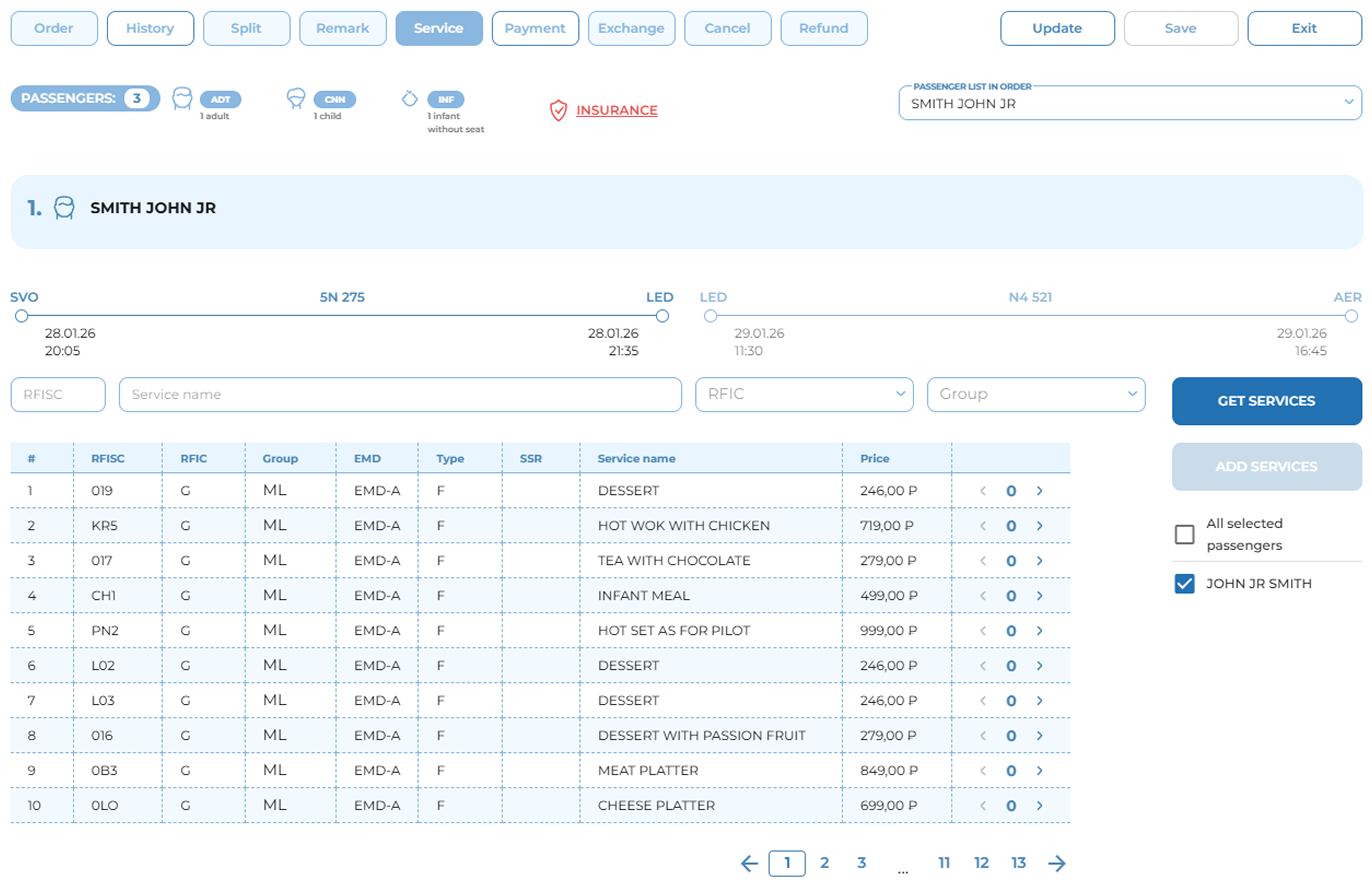
Order view with Service section opened
Adding Ancillary services to an Order
To add additional services to the order, perform the following steps:
1. Select the passengers:
Select one passenger or a group of passengers of the same category from the drop-down list. By default, the first adult passenger in the order is selected. When selecting multiple passengers of the same type (e.g., ADT adults only), the corresponding information blocks are displayed in the table. Data for passengers without a seat (INF) is displayed within the block of the linked adult passenger.
2. Select an itinerary segment:
Select the segment (flight) to apply the services to. Only one segment can be selected at a time.
3. Retrieve the list of services:
Click the "Get Services" button to load the list of available services for the selected segment. When changing the segment, you must click the button again.
4. Apply filters (if necessary):
To find the required service use the filter bar. The following criteria are available:
-
By RFISC code — search by subcode defining the type of service;
-
By name — text search by service name;
-
By RFIC — filter by service group code;
-
By group — filter by industry service groups (e.g., BG — baggage, ST — seat selection).
To clear a filter, click the cross next to the selected value.
5. Specify the quantity of services:
Set the number of service units for the selected passenger using the interactive counter in the services table.
6. Add services:
Click the "Add services" button to save the selected services in the application cache. If you need to add different services or different quantities for different passengers, repeat the steps for each passenger individually.
7. Save changes to the order:
Click the "Save" button to apply the changes to the order.
8. Obtain confirmation from the carrier:
After saving the services, you must obtain confirmation from the carrier regarding the status of each service: accepted for fulfillment, awaiting processing, or an error has occurred. To update the information, click the "Update" button next to the order management panel or navigate to the "Order" section.
If the added services are confirmed and require payment, the TOTAL order cost will change. The total cost of the added services will be reflected in the itinerary information block under the Services line.
Color encoding is used for quick visual assessment of the status of each added service:
 |
Service requires carrier confirmation |
 |
Service requires payment |
 |
Service confirmed / No action required |
 |
Service declined or cancelled by the carrier |
The page also provides functionality for adding insurance products using the "Insurance Services" button (See the section: Insurance Services).
Removing Ancillary Services from an Order
Deletion of additional services is available prior to order payment.
Note: Only unpaid services (any statuses except HI) can be deleted. For paid services, either Refund or Payment Cancellation is permitted (before the time limit expires).
To delete a service, perform the following steps:
1. Open the order and navigate to the "Service" section.
2. In the information block of the required passenger, locate the added services.
3. Click the cross button next to the required service.
The service will be marked for deletion:
-
the "Save" button will display the "del." indicator;
-
the change will be saved in the cache but will not yet be applied to the order.
4. Click the "Save" button to confirm the deletion.
Payment for Ancillary Services
Payment for additional services is performed as part of the overall order payment process and is possible in the following cases:
-
simultaneously with payment for the main order;
-
separately — if services are added to an already paid order (only the new services are paid for).
To pay for additional services, perform the following steps:
1. Navigate to the "Payment" section.
2. Select the form of payment from the available options.
3. Click the "Issue" button to process the transaction.
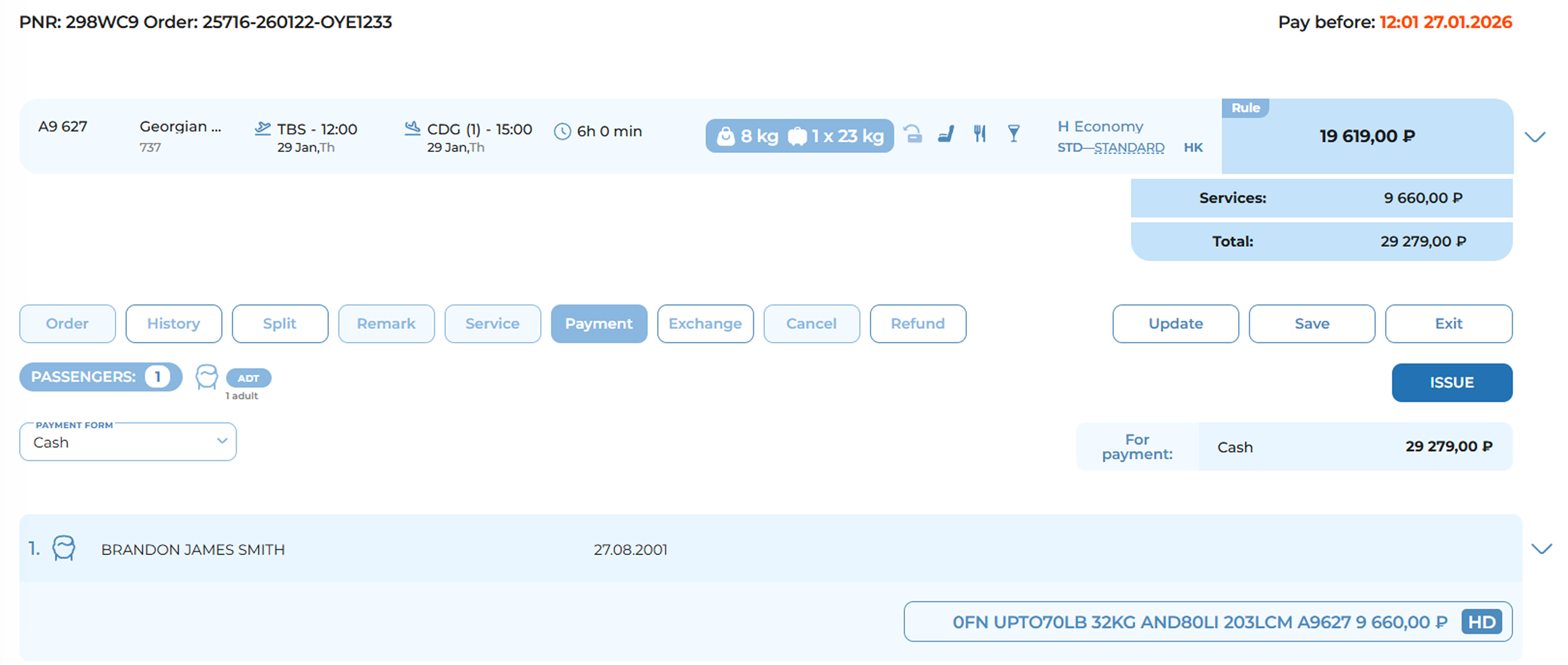
Payment page with services in a paid order
Notes:
-
Payment must be completed before the time limit displayed at the top of the page expires; otherwise, the services may be released from the booking.
-
Payment for additional services separately from an unpaid order is available only for insurance products.
-
After successful payment, an EMD number is assigned to each processed service.
-
The EMD number is displayed on the service badge.
-
To view detailed document information, click on the EMD number — a pop-up window containing the document form will open.
Insurance services
The MixVel Cashier Web Application provides the capability to add insurance products to an order. Insurance can be arranged both immediately after creating a booking and for an already paid order.
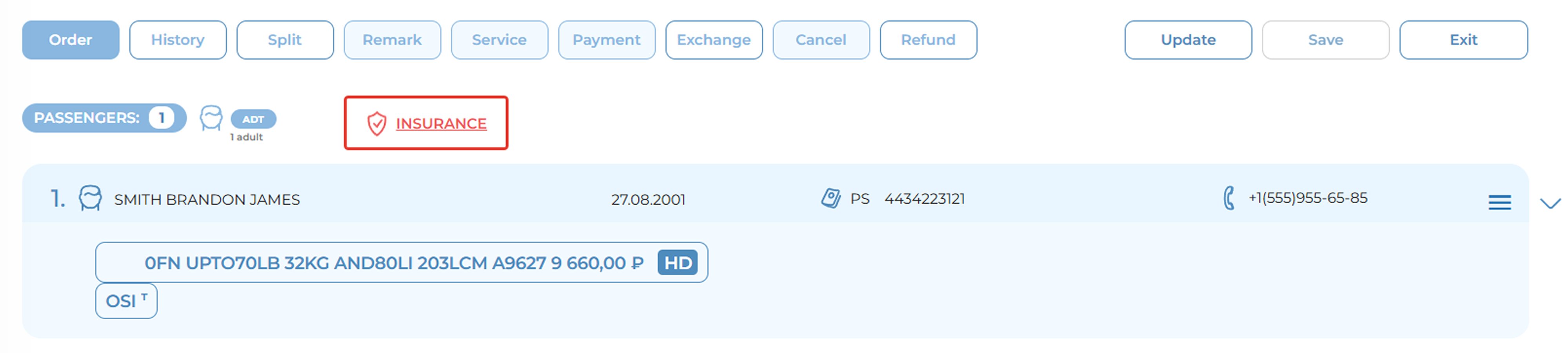
Insurance services button
Insurance services are available in two sections:
-
The "Order" section — on the order management panel.
-
The "Service" section.
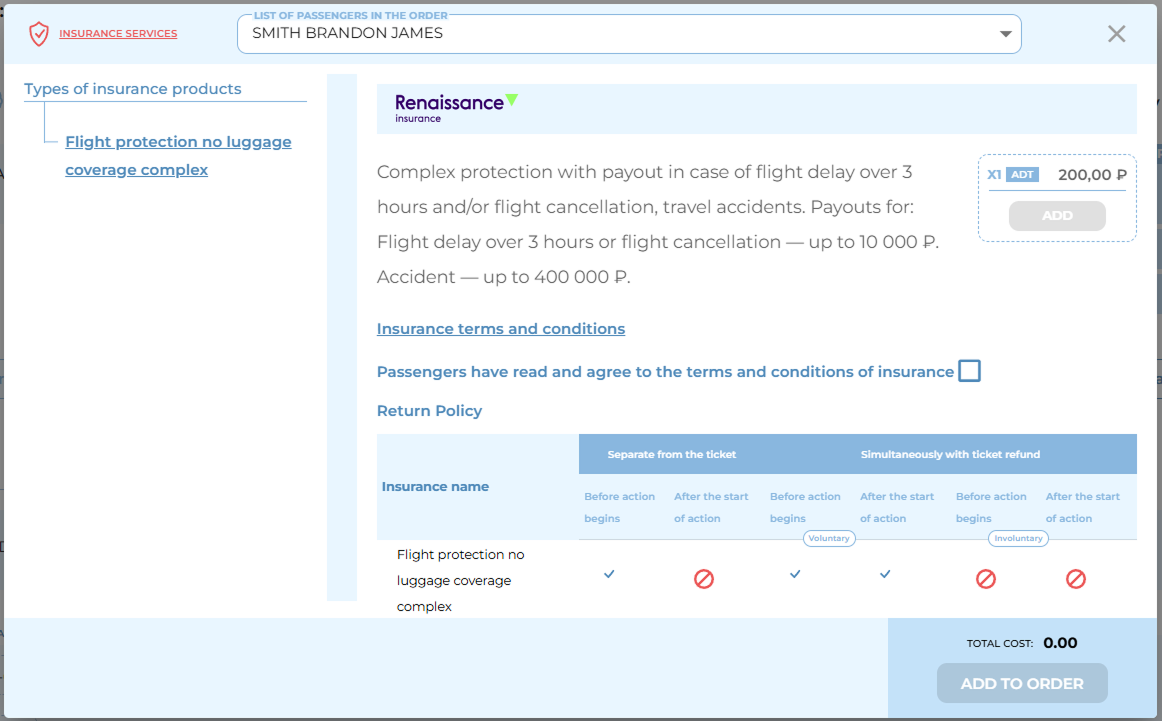
Insurance product offer window
To add insurance services, perform the following steps:
1. Click the "Insurance Services" button:
The system will select and display suitable insurance offers for the given order.
2. Select passengers:
The "List of Passengers in the order" field displays all passengers in the current order and their categories. By default, all passengers in the order are selected. You may select a specific passenger or keep all selected.
3. Select an insurance product:
The list of insurance products suitable for the given order becomes available after selecting passengers. Click on the product name in the left part of the window to view detailed information about it.
4. Calculate the price:
After selecting an insurance product and opening its detailed information, the system will display the current price. The price may be displayed in different ways.
5. Review the detailed information:
A detailed description is displayed in the right part of the window when a product is selected:
-
Information about the product, insurance payouts, and compensations.
-
A link to the insurance premium refund conditions.
-
A link to the ISTOCK information system for insurance Rules and Conditions (for products issued in a neutral TCH session).
6. Add the insurance product to the cart:
Check the checkbox "Passengers have read and agree to the insurance rules and conditions" and click the "Add" button. The selected product will appear in the cart (within the same pop-up window).
7. Add the insurance product to the order:
To add all selected products to the application cache, click the "Add to Order" button.
8. Finalize changes to the order:
The added insurance services appear in the application cache. To add the changes, click the "Save" button.
After a successful payment for the insurance services, the system will display badges with information about the insurance services.

Insurance services label in the order
Notes:
-
If no suitable insurance products are found, the window will contain the message: "No insurance products found for the order."
-
If passengers of different categories have the same insurance price, the price for each passenger category will be displayed separately.
-
If passengers of the same category have the same insurance price, the system will consolidate information for these passengers.
-
If pop-up windows are blocked in the browser, only the ISTOCK main page will open. In this case, allow pop-up windows in the browser settings and click the link again.
-
The same insurance product cannot be added twice to the same passenger.
-
If necessary, an insurance product can be removed directly from the pop-up window by clicking the cross button on the specific insurance service badge.
-
All itinerary segments of the order are included in the calculation of the insurance product cost (the full flight itinerary is taken into account).
Refund of Insurance Services
If it is necessary to cancel the insurance policy (subject to compliance with the insurance refund conditions), a procedure for refunding the insurance service is provided directly from the order interface.
To refund an insurance service, perform the following steps:
1. Open the order with the paid insurance service.
2. Navigate to the "Refund" section on the order management panel.
3. Select the insurance service to be refunded (check the checkbox).
4. Click the "Refund Calculation" button.
5. Review the calculated refund amount.
6. Check the checkbox "Agree with the refund calculation".
7. Click the "Refund" button to confirm the operation.
Note: After the refund is processed, the insurance policies become void.
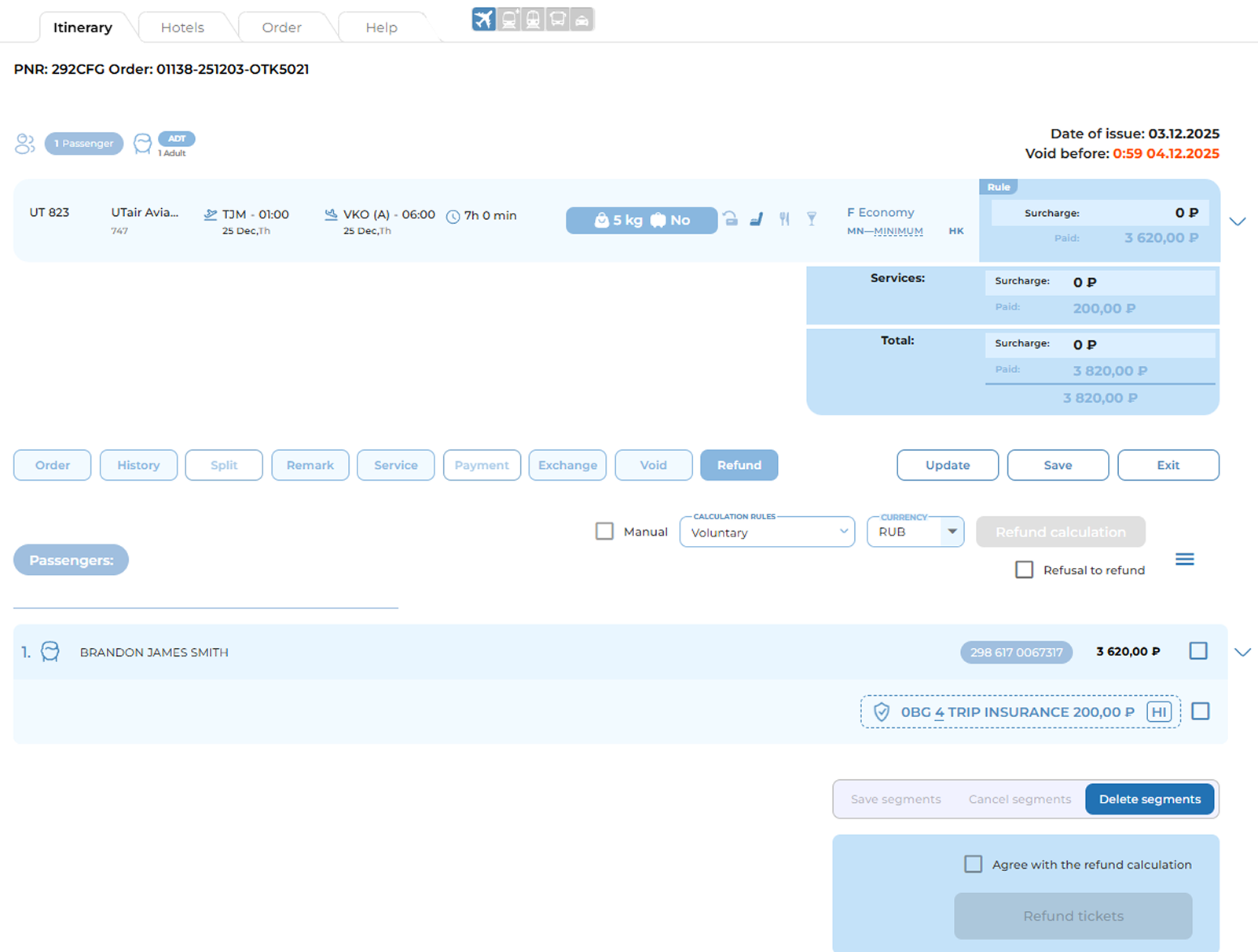
Refund window