Search for offers
After successful login to the MixVel Cashier Web Application, the main system interface opens. Navigation between key functional blocks is performed using the menu located in the upper part of the screen.
The «Itinerary» section opens automatically immediately after logging into the system and serves as the starting point for creating new bookings.
To proceed to managing created orders, use the «Order» section.
Main search parameters

Search parameters
The offer search page is available in the «Itinerary» section. The main parameters for simple and advanced search are listed below, along with their descriptions:
1. Departure and Arrival are mandatory fields. You must enter the code or name of the city, airport, or station using the keyboard. Input in Cyrillic or Latin characters is permitted; mixing alphabets is prohibited. As characters are entered, a drop-down list with suggestions from the MixVel reference database automatically appears below the field. To facilitate selection, visual markers are used in the suggestion list. Pay attention to the icons to the left of the name.
Note: The value must be selected from the pop-up suggestion list. This ensures that the system recognizes the exact geographic location you intended.

City

Airport
2. Travel Date — mandatory field. The date in this field defines the journey start date for searching suitable offers. Manual entry (in DD.MM.YYYY format) or visual selection is permitted: click the calendar icon on the right side of the field to open the interactive calendar, then select the desired year and month, and then click on one of the days in the calendar grid.
Note: The system allows searching for offers only up to 365 days in advance from the current date.
3. Return Date — optional field. The date in this field defines the journey end date for searching suitable offers. The same rules and restrictions apply to this field as to the Travel Date field.
Note: If you are planning a one-way journey, leave this field blank.

Drop-down calendar
4. Passengers — mandatory field. It defines the composition of travelers for whom the offer search is performed. By default, the field is set to: 1 adult passenger (ADT).
In this field, manual entry and visual selection from the list of frequently used categories are permitted: click the person icon on the right side of the field, then set the required number for the desired passenger categories. To confirm the selection, click the «OK» button.

Manual passenger category entry

Drop-down list of frequently used passenger categories
The system uses a specialized input format for precise identification of passenger categories: [quantity][category code]/
-
Quantity — a digit indicating the number of passengers in the given category.
-
Category code — a three-letter code (IATA standard), e.g., ADT, CNN, INF.
-
Separator / — a forward slash separating one category from another. The symbol is added automatically after entering the category code.
Note: The system also supports searching by special passenger category codes (for example, for students, senior travelers, or military personnel). To use these, enter them manually in the Passengers field.
Additional search parameters
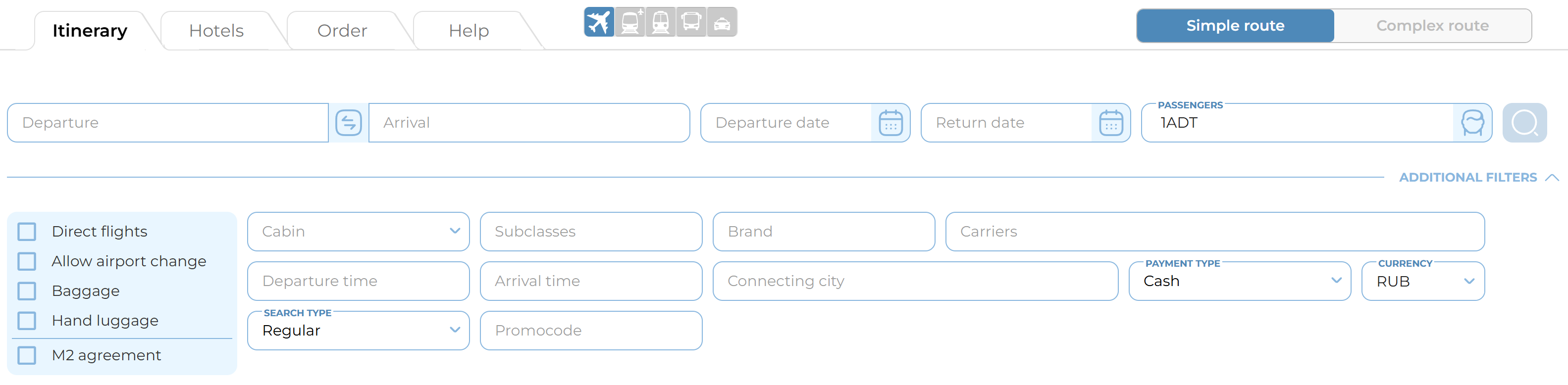
Additional filters
The «Itinerary» section also provides access to additional search parameters:
| Field | Description |
|---|---|
| Cabin | An optional field. This field allows limiting the offer search to a specific class of service on board the aircraft. To change the parameter, expand the drop-down list and select one of the following values: Economy, Premium Economy, Business, First. By default, the value is set to «All», and the system searches across all available classes of service without restrictions |
| Subclass (RBD) | An optional field. Manual entry in Cyrillic or Latin characters is permitted in this field. As characters are entered, the system automatically inserts a separator (comma). Maximum of 3 consecutive RBDs |
| Brand | An optional field. Manual entry of a brand code in Latin characters with the addition of digits, containing no more than 10 characters, is permitted in this field. The field allows specifying only one brand code per search request |
| Carriers | Field becomes mandatory if the Brand filter is used. Manual entry of IATA and TCH codes in Cyrillic or Latin characters (maximum 2–3 characters) is permitted in this field |
| Departure Time | An optional field. Defines the time interval for the departure of the first flight in the itinerary. Input format: HH:MM-HH:MM (e.g., 07:00-12:00) |
| Arrival Time | An optional field. Defines the time interval for arrival at the final destination of the itinerary. Input format: HH:MM-HH:MM (e.g., 18:00-22:00) |
| Connecting city | An optional field. Allows specifying a desired transfer point (for connecting itineraries only). Manual entry of IATA and TCH codes in Cyrillic or Latin characters is permitted in this field Note: The field is unavailable if the «Direct Flights» parameter is activated. The value cannot match the departure or arrival points |
| Payment Type | An optional field. Defines the preferred method of payment for the order. Available values: Cash, Payment Order, VT-VPD (Military Transportation Requirement), KR-VPD (Credit Form of Payment VPD) Note: When selecting «VT-VPD» or «KR-VPD», it is necessary to specify the document number, department, and department code (if available). It is prohibited to use VPDs of different departments in one order. For more details on the required VPD data, refer to the «Payment» section |
| Currency | An optional field. Restricts search results to offers in the specified currency. Manual entry of currency codes and names in Cyrillic or Latin characters is permitted in this field. Selection from the MixVel reference database drop-down list is mandatory |
| Search type | An optional field. Selection of the offer type from the drop-down list: - By default, the value is set to «Regular». - «Corp. Agreement»: when this value is selected, additional fields appear for entering data related to trilateral agreements. To add multiple agreements, use the «+» button. Note: For details, refer to the section: «Search for offers under corporate fares» |
| Promocode | An optional field. Used to specify a discount code. The value in this field must begin with the «ACC» prefix. The field is available for simple search only |
| Direct Flights | When field is activated, the system will search only for itineraries without connections (direct flights) |
| Allow airport change | When field is activated, the system will include in the results options where a change of airport is required as part of the connection (e.g., transfer from Domodedovo to Sheremetyevo) |
| Baggage | When field is activated, the system will display only those offers where the cost of baggage carriage is already included in the ticket price |
| Hand Luggage | When field is activated, the system will display only those offers where carriage of carry-on baggage is included in the ticket price |
| M2 agreement | When field is activated, the system will restrict the search to offers available under the M2 bilateral agreement |
Searching for Offers under Corporate Fares (Trilateral (3D) Agreements)
Corporate fares are special confidential fares not available for public sale. Their application is governed by trilateral agreements between the Airline, the Corporate Client, and the Agency.
To activate searching under trilateral agreements:
1. In the search form (simple or complex itinerary), expand the «Additional Filters» section.
2. Locate the «Search Type» field.
3. From the drop-down list, select the value «Corp. Agreement».

Additional search parameter «Search type»
Upon selecting the mode, the interface is supplemented with a block of fields for entering corporate agreement parameters:
1. Airline — optional field. The code of the carrier providing the discount. Format: 2–3 characters (IATA or TCH code).
2. Agreement Number — optional field. Identifier of the program contract.
3. Discount Code — mandatory field. Identifier of the program account for automated fare calculation with special discounts. The code must begin with ACC.
4. TourCode — optional field. Tour code.
If it is necessary to search for offers under multiple corporate agreements simultaneously:
1. After completing the first row of parameters, click the «Add» (plus) button.
2. In the additional row that appears, enter the data for the next agreement.
Notes:
-
When working with the MixVel text terminal, to add a discount code, the agent uses a discount document and enters the OTHSACC remark.
-
When working with the MixVel text terminal, to add a tour code, the OTHSCDTR remark is used.
-
Maximum number of agreements used simultaneously: 6 (one main row + 5 additional rows).
-
The «Corp. Agreement» search mode may also be used to enter promo codes and other discount codes using a similar activation mechanism.

Block of additional fields for 3D search
Simple route search
A simple itinerary is a basic search scenario that implies a flight from point A to point B (one-way) or round trip.
To perform a search for a simple itinerary, the following mandatory fields must be completed:
-
Departure;
-
Arrival;
-
Departure Date;
-
Passengers.
Note: The «Return Date» field is optional. If it is left blank, the system searches for one-way tickets.
To refine the search query and achieve a more precise match with the client's requirements, use the additional filters. They are grouped in a separate section and are completed optionally.
Accessing additional filters:
1. On the search form, locate the «Additional Filters» button.
2. Click it to expand the hidden panel with additional fields.
3. In the expanded panel, all optional parameters described in the Additional Search Parameters section are available.
Complex route search
A complex route is intended for searching for flights consisting of several consecutive segments (legs), for example: Moscow → Paris → Rome → Moscow. This mode provides greater flexibility when planning multi-leg journeys.
To switch to the complex route mode, click the «Simple Route / Complex Route» toggle in the upper right corner of the search form.

Search type switch
When switching to the complex itinerary mode, the form changes:
1. Adding segments: to add a new segment, click the «Plus» button at the end of the last row.
2. Removing segments: to remove an unnecessary segment, click the «Delete» (cross) button at the end of the corresponding row.
In the complex itinerary mode, all search filters are applied globally to the entire flight chain. They are located in the lower part of the form:
3. Direct Flights
4. Airport Change
5. Baggage
6. Carry-on Baggage
7. Search Type
8. Form of Payment
9. Currency
Note: In the current version of the application, additional filters for each individual row (segment) of the itinerary are unavailable.
Search results
After clicking the «Search Flights» button, the system processes the request and displays the results page. This page presents a list of commercial offers (flight options) that match the specified parameters.

Route search results
Each flight option is presented as a separate row. All flights included in a single offer are visually grouped and combined by a common blue header. This header contains the main information elements and the offer management controls.

A single offer without price details
| Parameter | Interface | Description |
|---|---|---|
| Flight number |

|
Carrier’s flight number |
| Carrier |

|
Full carrier name |
| Aircraft type |
|
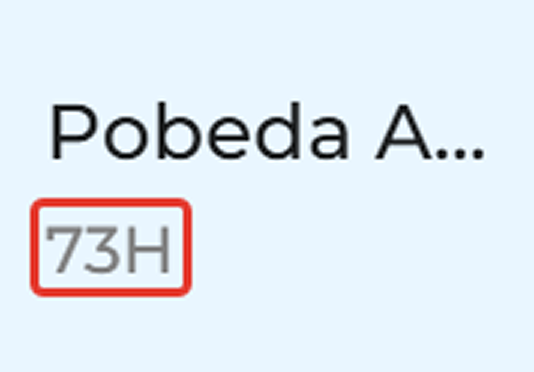
Aircraft model type code |
| Departure and arrival date and time |

|
Displayed for each flight segment. The local time of the departure and arrival airports is indicated. For convenience, the Day of the week is also indicated |
| Departure and arrival airports | IATA airport codes (e.g., DME, JFK). For convenience, the terminal may also be indicated (e.g., SVO (D)). | |
| Flight time |

|
General flight time for the segment (leg) |
| Baggage and Hand luggage |

|
Interactive button. Opens a window displaying brief information about baggage and hand luggage |
| Brand options |

|
Fare refundability, whether seat selection, meals, and lounge access are included in the fare |
| Cabin and brand information |

|
Subclass, number of available seats, class of service (cabin), brand code and name |
| «М2» icon |

|
This icon is displayed when the «M2 Agreement» filter was enabled during the search |
| «Rule» button |

|
Interactive button. Opens a window displaying fare rules’ details |
| «Details» button |

|
Interactive button. Opens detailed offer information with a cost breakdown, detailed information on the number and categories of tickets included in this offer. |
| The «i» button |

|
Interactive button. Opens a pop-up window with detailed information on the components of the amount. The button appears only if multiple Taxes and/or Fees have been obtained in the offer. |
| Price button |

|
Interactive button. Displays the total cost of the offer (for all passengers) and the currency code. Clicking this button initiates the booking operation for the selected offer. |
Fare Rules
Fare Rules represent a formalized set of terms that a passenger must comply with for the carrier to apply a specific fare. Fare Rules may include conditions related to passenger details, ticket issuance/exchange/refund procedures, carriage specifics, and other relevant conditions.
To view the Fare Rules, the user must click the «Rule» button in one of the following contexts:
-
Within a specific offer in the route search results,
-
In the selected offer during the booking process, or
-
In an already created order.
Clicking the button opens a pop-up window displaying the Fare Rules for the selected flight segment. If the itinerary contains multiple segments, the user can review the Fare Rules for each individual segment by switching between tabs located at the top of the pop-up window.
Should any ancillary services be included in the offer, their respective terms and conditions will also be displayed within the same Fare Rules window.

A pop-up window with Fare Rules
Fare Rules apply to the following fare types:
-
Standard fares impose no restrictions on carriage and include full-year fares for First, Business, and Economy cabins.
-
Special fares, which carriers establish with specific conditions — such as minimum and maximum stay requirements at the destination, ticket refundability, rebooking rules, etc. Special fares are typically priced lower than standard fares, enabling airlines to attract additional passengers and thereby increase revenue.
Basic fare restrictions may be defined within the following categories:
- Selectability
- Day of week / Time of day
- Seasonality
- Flight applicability
- Booking and ticketing
- Minimum stay
- Maximum stay
- Stopovers
- Transfers
- Fare construction and combinations
- Blackout dates
- Fare surcharges or discounts
- Accompanied passenger requirements
- Carriage restrictions
- Sales restrictions
- Penalties for voluntary changes
- Highest Intermediate Point/ Mileage accrual rules
- Ticketing advisories
- Child and infant discounts
- Group leader discounts
- Agent discounts
- Other discounts
- Additional fare restrictions
- Fare basis (as defined in Fare Rules)
- Voluntary exchange
- Voluntary refund
- Confidential fare restrictions
- General applicability