Order search
A previously created order and its associated ticket can be retrieved for viewing and management from the «Order» section using several search methods:
-
Search by MixVel Order Number;
-
Search by PNR Locator;
-
Search by Ticket Number;
-
Search by Airline-Specific Booking Reference.
To search by MixVel Order Number:
-
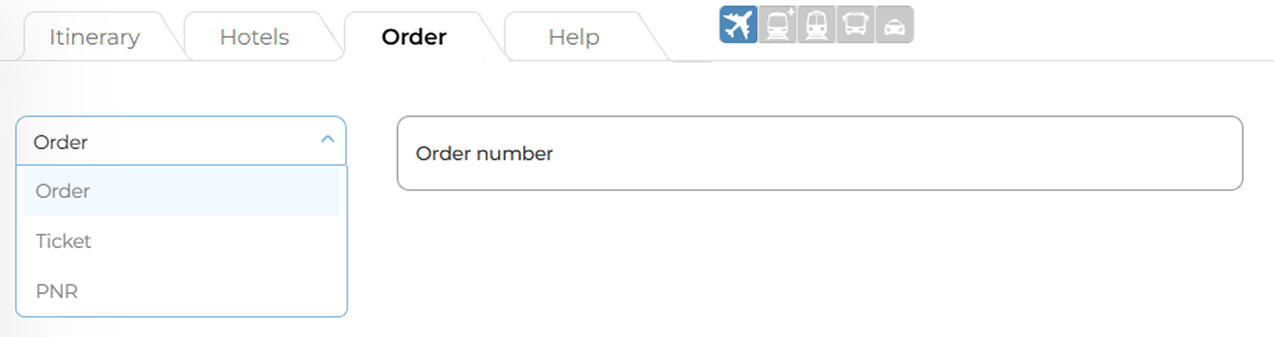
Select «Order» from the dropdown menu.
-
In the «Order Number» field, enter the 18-character MixVel Order Number (including hyphens).
-
Click the «View Order» button.
If the order exists within the MixVel system, it will be opened.

Order search by the order number
Search by PNR Locator
-
From the dropdown menu, select «PNR».
-
Enter the Booking System Locator (in UPPERCASE letters) in the corresponding field.
-
Click the «View Order» button.
Order search by the PNR
Search by Ticket Number
-
From the dropdown menu, select «Ticket».
-
Enter the ticket number in the corresponding field.
-
Click the «View Order» button to open the order page, similar to the previous search methods.
Viewing a Ticket Document Only
Click the «View Document» button to open the ticket document (commonly called the «e-ticket» or «EMD receipt») without access to order management.
Available information in this view:
-
Issued Document Number;
-
Date and Time of Issue;
-
Passenger's Surname, First Name, and Middle Name;
-
Flight Coupon(s) and Coupon Status;
-
Various calculation and fare data.
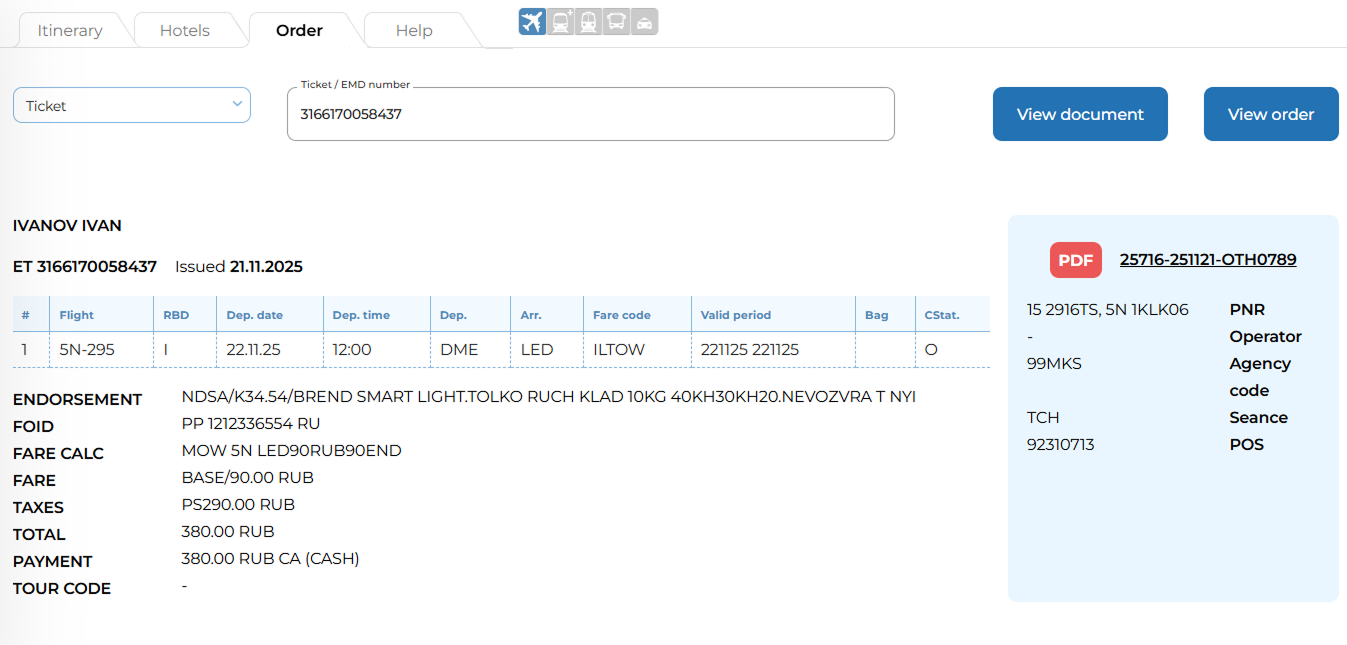
Search by the ticket number
Search by Airline-Specific Booking Reference
-
Select «PNR» from the dropdown menu.
-
Enter the airline-specific booking reference (airline locator).
-
Enter the airline code in the «Carrier code» field.
-
Enter the Last name of one of the passengers from the order in the «Passenger’s last name» field.
-
Click the «View Order» button.

Search by the Airline locator
Viewing a Ticket from Within an Order:
-
Click the document number located to the right of the passenger's name.
-
To return to the main Order screen, click the «Back to Order» button.