Order operations
Once an order is successfully created, you can perform the following actions:
1. Refresh order data;
2. Edit passenger details.
The following parameters become available after a booking is successfully created:
| Parameter | Interface | Description |
|---|---|---|
| PNR (Passenger Name Record) number |
|
Unique order identification number |
| MixVel order number |
|
Internal order number in the MixVel system |
| Payment time limit or order status |
|
This field contains either time limit, order status, ticketing date |
| Route details |
|
Flight segments’ information including dates and directions |
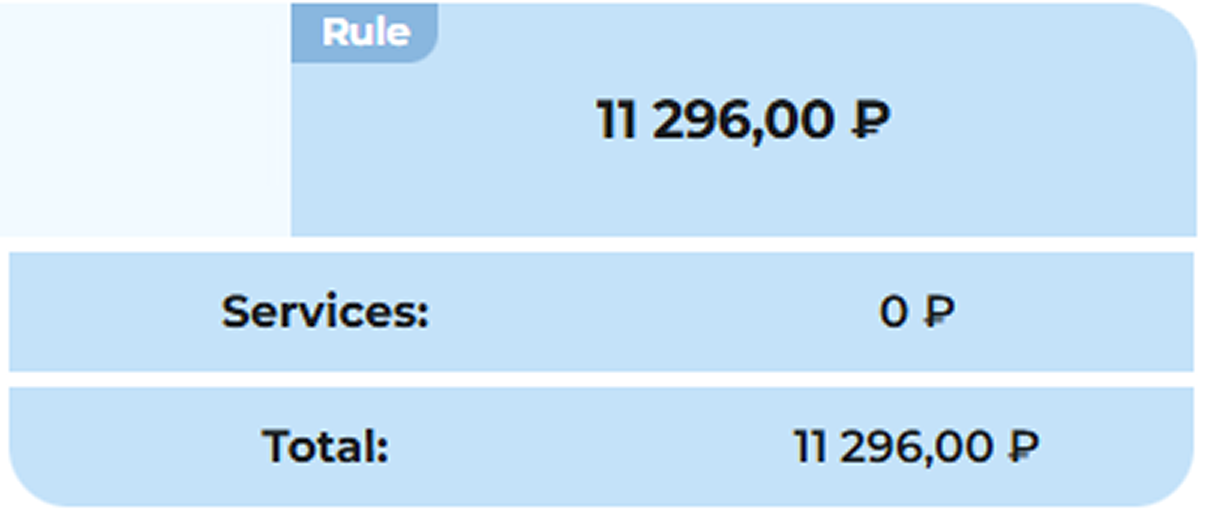
| Route price, total ancillary services price, total order price |
|
Aggregated order price and ancillary services’ information |
| “Details” button |
|
Clicking this button will expand price details |
| Price details. Contains detailed prices applicable to the order |
|
|
| Order management panel. Contains available operations |
|
|
| Passengers’ information. Displayed as a collapsed block with the ability to expand it |
|
|
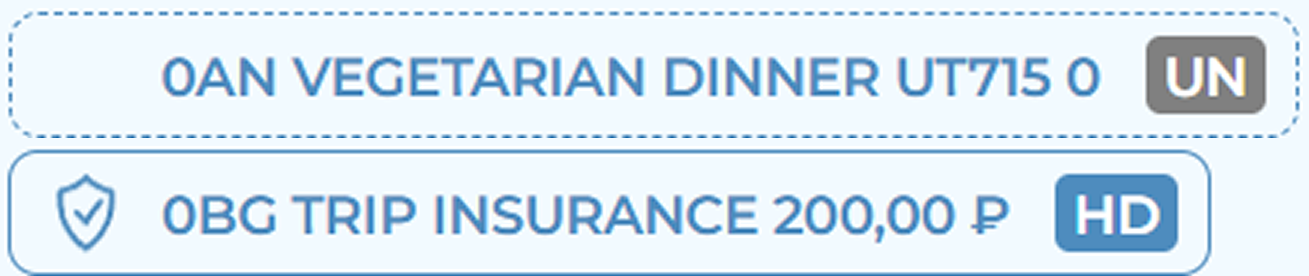
| Ancillary services information |
|
A list of ancillary services with the amount and status for each |
| Additional passenger menu |
|
An interactive button for managing passenger’s information |
| Special Service Request (SSR) remark block |
|
Contains individual passengers’ requests associated with the order |
| Other Service Information (OSI) remark block |
|
Additional service information associated with the order |
| Agency contacts |
|
Issuing agency contacts |
| Tickets and EMDs’ information block |
|
Contains tickets and EMDs’ data. Only in paid orders |








Order information update
The Update operation is intended for synchronizing the data of the current order with up-to-date information from the carrier (airline) and the system.
Performing an update is necessary in the following cases:
-
Obtaining the current order status.
-
Requesting updates from the carrier (change of departure time, flight status, aircraft substitution, etc.).
-
Discarding changes that have been entered but not saved (reset to the current state of the order in the system).
Order update procedure:
1. Open an existing order.
2. On the order details page, click the "Update" button (located below the order price block).
3. The system will execute the request and update the order data.

Order Update button
When performing the update operation, the MixVel Cashier Web Application interacts with the cache (temporary data storage). Understanding this mechanism is essential for proper handling of changes:
If changes have been made to the current order (for example, passenger data has been edited) but have not yet been saved, clicking the "Update" button will prompt the system to offer options for handling these changes:
-
Discard changes ("Yes" button) — clear the application cache and display only the up-to-date data from the carrier.
-
Keep changes ("No" button) — continue editing the order data. The system will display all unsaved edits. The order refresh will not be performed.
Passenger Data Management
After an order is created, the user can view and modify passenger information, as well as add additional data. Access to management functions is provided via an additional menu available for each passenger.

Additional passenger menu buttons
The following menu items are available for passengers with a seat:
1. Edit — modification of the passenger's primary data (see section "Edit Passenger details before Payment").
2. Add → Phone — addition of an extra contact phone number for this passenger.
3. Add → E-mail — addition of an extra email address for the passenger.
4. Add → Visa — entry of data for the document permitting entry into the country of stay (visa).
5. Add → Address — entry of the passenger's place of stay or residence address.

Additional passenger menu
Note: For passengers of the INF category (infant without a seat), the menu additionally includes the "Delete" item (see section «Remove a passenger without a seat»).
Edit Passenger Details Before Payment
In the order viewing mode, prior to payment, the following passenger data can be modified:
-
Personal details: last name, first name, middle name, date of birth, gender.
-
Identity document details.
-
Contact details: phone number, email address.

Passenger data in editing mode
Passenger data editing procedure:
1. Open the passenger's additional menu and click the "Edit" button.
2.The system will switch the selected passenger to editing mode. In this mode:
-
All other actions with the order (navigation via the order management panel, editing other passengers) become unavailable.
-
The additional menu button is replaced by two control buttons: the checkmark button "Apply Changes" and the cross button "Cancel Changes".
3.Make the necessary changes to the passenger data fields.
4.Click the checkmark button "Apply Changes".
5.Click the "Save" button on the order management panel.
6.The system will save all accumulated changes and update the order data.
Note: After clicking the checkmark button "Apply Changes", the modifications are saved in an intermediate cache. The changes in the cache have not yet been applied to the order. To finalize the changes, click the "Save" button.

Passenger data changes has been saved in the order’s cache
The user may delete a passenger's contact phone number or email address by clicking the red cross button next to the corresponding field.
The identity document cannot be deleted. It can only be modified (replaced with a different type or number).
Note: Before deleting contact details, ensure that at least one passenger in the order has an associated mobile phone number and one email address. If the order is left without the mandatory contacts, the system will block saving until the data is restored.
Add passenger contact details
Contact details (phone number and email address) are used to communicate with the passenger, send confirmations, and provide notifications of flight changes.
Note: In the current version, adding and editing contact details is available only prior to order payment.
To add a phone number, perform the following steps:
1. Open the additional passenger menu and select "Add" → "Phone".
2. In the opened form complete the following fields:
-
Phone Number — mandatory field. Number in international format between 11 and 15 digits.
-
Contact Type — mandatory field. Select contact type from the drop-down list.
3. Click the "Save" button to add the number.

Phone number adding
To add an email address, perform the following steps:
1. Open the additional passenger menu and select "Add" → "E-Mail".
2. In the opened form complete the following field:
- E-Mail (Email Address) — mandatory field. Format: username@domain.zone
3. Click the "Save" button to add the address.

Email adding
Add a visa for entry into the destination country
For passengers traveling on international flights, providing visa details — a document permitting entry into the destination country — may be required.э
To add a visa for a passenger in the order, the following fields must be completed:
-
Visa number – mandatory field;
-
Place of issue – mandatory field. Manual entry in Latin characters is permitted;
-
Date of issue – mandatory field. Cannot be later than the departure date;
-
Сountry – mandatory field. The code of the country that issued the visa; manual entry of the code or name, or selection of a value from the MixVel reference database is permitted;
-
Place of Birth – optional field. Manual entry in Latin characters is permitted;
-
Expiry date - mandatory.

Visa adding
Note: Only one visa may be added per passenger in the booking. Each visa number must be unique, including for infants.
Add a passenger’s stay or a residential address
Providing the passenger's destination address or permanent residence address may be required for certain travels.
To add a destination or residence address select "Add" → "Address" in the additional passenger menu and complete the following fields:
-
Address type – mandatory field. Select the address type — Residence or Destination;
-
City – mandatory field. Manual entry in Latin characters is permitted;
-
Country – mandatory field. Manual entry of the code or name of the country of entry or residence, or selection of a value from the reference database, is permitted;
-
Postcode – mandatory field. Manual entry of Latin characters or digits is permitted;
-
Address – mandatory field. Manual entry in Latin characters is permitted;
-
State/Area – optional field. Manual entry in Latin characters is permitted.

Address information adding
Note: Up to two addresses of different types may be added per passenger in the booking.
Remove a passenger without a seat from the booking before payment
A created order provides the option to delete a passenger of the INF category (infant without a seat) prior to payment.
The procedure for deleting an infant without a seat consists of the following steps:
1. Open the existing order.
2. Locate the infant without a seat in the passenger list.
3. In the row of this passenger, click the passenger's additional menu button.
4. Select the "Delete" option.
5. The system will request confirmation of the operation. Confirm the deletion.
Note: At this stage, the operation is recorded in the system but has not yet been applied to the order. Until the order is saved, any other changes to the order become unavailable.
6. To finalize the deletion operation, click the "Save" button.
The system will save the changes, and the INF category passenger will be permanently removed from the order.
Adding Airline Bonus Program Accounts
In the MixVel Cashier Web-Application, the user is able to add bonus program accounts prior to order payment. The functions are accessed via the additional passenger menu available for each passenger with a seat (See the section: Passenger Data Management).
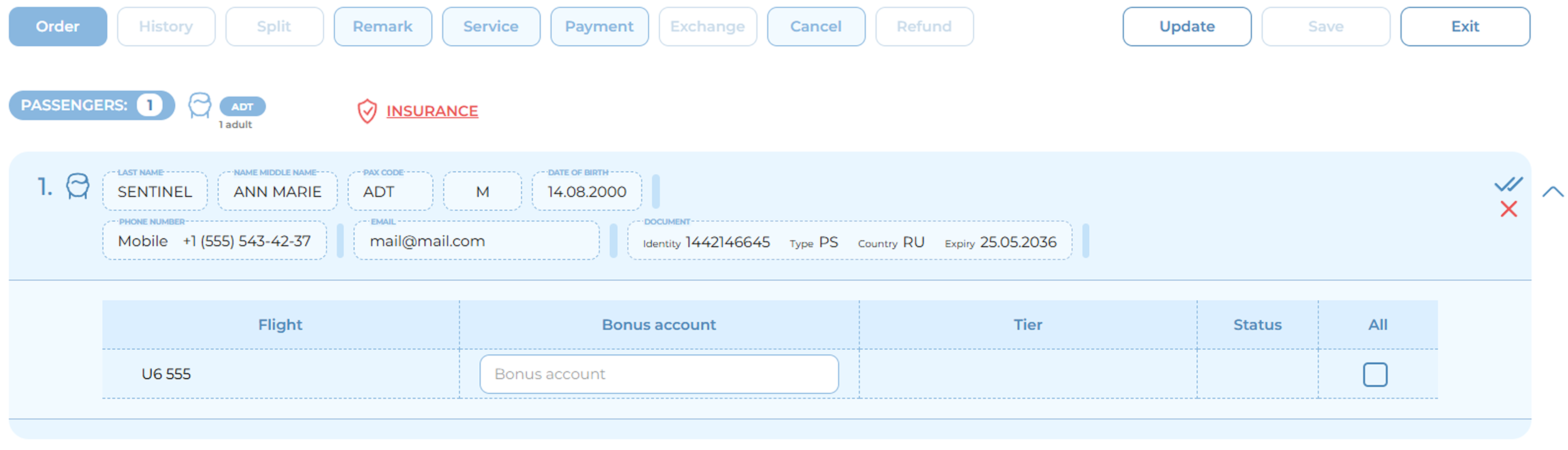
Bonus account fields in the Order section
Procedure for adding a loyalty program account:
1. Open the existing unpaid order.
2. Open the passenger's additional menu and click the "Bonus Account" button.
3. The system will display the bonus account block below the selected passenger's data.
Note: The flight numbers from the order will be indicated in the first column.
4. Enter the bonus program account numbers.
Note: A separate bonus account can be added for each segment. To add a bonus account to all segments, check the "All" checkbox.
5. Click the checkmark button "Apply Changes".
6. If necessary, add bonus accounts for other passengers in the order by repeating steps 2–5.
7. Click the "Save" button on the order management panel.
8. The system will save all accumulated changes and update the order data.
After the changes are saved, the corresponding passenger blocks will display the bonus program account tier levels (if available) and the statuses of their addition to the order.
To modify or delete previously added bonus accounts, open the additional passenger menu and click the "Edit" button.
Notes:
-
A bonus account can only be added to a passenger with a seat.
-
If the "All" checkbox is selected, the bonus account specified in the first row of the bonus account block for the given passenger will be added to all segments of the order.
-
Added bonus accounts are displayed in the information blocks of the corresponding passengers.
-
Color coding is used for bonus account statuses (similar to ancillary services statuses).
-
Adding, modifying, or deleting bonus account data is possible only in the passenger editing mode and only prior to order payment.
Booking Cancellation
The booking cancellation operation is intended for voiding a booking. Depending on the order status (paid or unpaid), the "Cancel" section implements one of the two scenarios:
-
Cancellation of an unpaid order — Complete voiding of the booking without financial consequences.
-
Cancellation of a paid order — Voiding. Annulment of a paid order within the time limit without penalty. See the section: Void.

Cancellation window
Note: In the current version only full cancellation of the order is available. Partial cancellation (of individual segments or passengers) is not supported.
To cancel a booking, perform the following steps:
1. Open the unpaid order.
2. Navigate to the "Cancel" section on the order management panel.
3. Select the action for the segments:
-
Cancel segments — segments receive the "XX" status and remain in the order;
-
Delete segments — segments are completely removed from the order.
4. Click the "Confirm" button.
After the operation is completed, the order receives the "Cancelled" status. If the "Cancel segments" option is selected, the segments are displayed with the "XX" status
Notes:
-
The operation is irreversible.
-
All additional services associated with the order are annulled.
Payment
The payment section is used to finalize the issuance of travel and additional services documents. Payment for airline tickets and additional services is supported as a single transaction.

«Payment» section on the order window
To perform payment follow the steps:
1. Navigate to the "Payment" section on the order control panel.
2. Select a payment method.
3. Fill in additional fields, if required.
4. Verify the total amount due.
5. Click the "Issue" button.
After successful payment, the system updates the order status and automatically opens the "Order" section. The order displays ticket numbers (for air carriage) and EMD numbers (for additional services). The issued documents will be sent to the email address provided at the time of booking.
The following payment methods are available:
-
Cash — payment in cash;
-
Payment Order — non-cash payment via bank transfer details;
-
VT-VPD — military transportation document for service personnel;
-
KR-VPD — military transportation document, credit form;
When selecting the VPD payment method, the following rules apply:
-
It is prohibited to use VPDs of different departments in one order.
-
Payment of the entire order with a single VPD is permitted, as well as the use of multiple VPDs (separately for each passenger or in a combined option).
-
Minimum quantity — 1 VPD per order; maximum — 9 VPDs.
To pay using a VPD, it is necessary to:
1. In the Document field, specify the VPD number without the "VPD" prefix.
2. In the Department field, select the department that issued the document.
3. If the issuing department code is available, it must be specified in the Department Code field.
Note: If a single VPD is to be used to pay for the entire order, check the "One military requirement for all" checkbox.

Paid order view
Notes:
-
When paying with VPD, payment for orders containing additional services and/or insurance is unavailable.
-
To view a document, click on its number on the badge in the passenger's block.
-
If a passenger has multiple documents, use the "Details" button to display the full list.
Splitting an order
Order splitting allows creating multiple bookings from a single original one, whereby one of them retains the original PNR number. This is used, for example, when passengers continue their journey on different routes or when payment needs to be split.

Splitting an order
To perform the splitting operation, you must:
1. Open the order that needs to be split.
2. On the order management panel, click the "Split" section.
3. Select the passengers to be separated into a new booking.
4. If necessary, select which order to open after splitting: "Show split Order" or "Show main Order".
5. Click the "Split" button.
In the interface that opens, the "Split" section displays a list of all passengers in the current order. The selected passengers are transferred to a new child order with a new PNR number, while the remaining passengers stay in the original order, retaining the original PNR number.
The choice between opening the child or parent order determines which booking will be displayed after the operation:
-
"Show split Order" – the new order with the separated passengers will open;
-
"Show main Order" – the original order with the updated passenger list and the retained original PNR number will open.
After the operation is completed, the splitting results are displayed on the "Order" section.
Notes:
-
Separating infants without a seat (INF) into a separate booking is possible only if accompanied by an adult passenger over 18 years of age.
-
Separating children (CNN) into a separate booking is possible both before and after order payment, provided that remarks regarding accompaniment by an adult passenger are added.